Free Hacking Tools: faster

Showing posts with label faster. Show all posts

Saturday, 23 March 2013

Mozilla's Ubiquity gets faster, prettier

,

Mozilla's Ubiquity gets faster, prettier

On Monday Mozilla released a new version of Ubiquity, the in-browser command line- utility. While mostly a "stability" update, the add-on has undergone considerable cosmetic change as well, sporting a new dark plastic look. This look can be changed by anyone as part of a new styling system that uses simple CSS. Presumably, user-designed themes will go into an add-ons site as the product matures.bnz


In addition to its new look, Ubiquity now borrows a few features from Firefox 3's "awesome bar." It remembers some of the commands you've used in the past and will let you hop to them right away when starting a new command. For instance, if you frequently use the integrated Wikipedia look-up, simply typing "w" into Ubiquity will pull it up as one of the top search options.

If you haven't yet tried Ubiquity I'd recommend giving it a spin with this update. It's come a long way since earlier releases and can be genuinely useful if you take the time to learn some of the commands. Future releases will no doubt smooth out that learning curve and make it a little easier for the less tech-savvy to approach. Along those lines, Mozilla is at work on a version that lets you pull it up and pick out menu commands with your mouse, just like a contextual menu.

Wednesday, 20 March 2013

Make XP faster as never before

,
Yet another series of tricks to significantly increase your windows XP's speed. This include removing uselessly enabled options that do nothing but just slow down the PC. Just follow these simple steps and boost up your PC to a new level.


Disable CD Autorun
( WinXP PRO Only)

1) Click Start, Run and enter GPEDIT.MSC

2) Go to Computer Configuration, Administrative Templates, System.

3) Locate the entry for Turn autoplay off and modify it as you desire.


Speed Up Browsing
When you connect to a web site your computer sends information back and forth. Some of this information deals with resolving the site name to an IP address, the stuff that TCP/IP really deals with, not words. This is DNS information and is used so that you will not need to ask for the site location each and every time you visit the site. Although Windows XP and Windows XP have a pretty efficient DNS cache, you can increase its overall performance by increasing its size. You can do this with the registry entries below:

Windows Registry Editor Version 5.00
[HKEY_LOCAL_MACHINE\SYSTEM\CurrentControlSet\Services\Dnscache\Parameters]
"CacheHashTableBucketSize"=dword:00000001
"CacheHashTableSize"=dword:00000180
"MaxCacheEntryTtlLimit"=dword:0000fa00
"MaxSOACacheEntryTtlLimit"=dword:0000012d

Make a new text file and rename it to dnscache.reg. Then copy and paste the above into it and save it. Merge it into the registry.


DISABLE INDEXING SERVICES

Indexing Services is a small little program that uses large amounts of RAM and can often make a computer endlessly loud and noisy. This system process indexes and updates lists of all the files that are on your computer. It does this so that when you do a search for something on your computer, it will search faster by scanning the index lists. If you don't search your computer often, or even if you do search often, this system service is completely unnecessary. To disable do the following:

1. Go to Start
2. Click Settings
3. Click Control Panel
4. Double-click Add/Remove Programs
5. Click the Add/Remove Window Components
6. Uncheck the Indexing services
7. Click Next

OPTIMISE DISPLAY SETTINGS

Windows XP can look sexy but displaying all the visual items can waste system resources. To optimize:

1.Go to Start
2. Click Settings
3. Click Control Panel
4. Click System
5. Click Advanced tab
6. In the Performance tab click Settings
7. Leave only the following ticked:
- Show shadows under menus
- Show shadows under mouse pointer
- Show translucent selection rectangle
- Use drop shadows for icons labels on the desktop
- Use visual styles on windows and buttons


SPEEDUP FOLDER BROWSING

You may have noticed that everytime you open my computer to browse folders that there is a slight delay. This is because Windows XP automatically searches for network files and printers everytime you open Windows Explorer. To fix this and to increase browsing significantly:

1. Open My Computer
2. Click on Tools menu
3. Click on Folder Options
4. Click on the View tab.
5. Uncheck the Automatically search for network folders and printers check box
6. Click Apply
7. Click Ok
8. Reboot your computer
REMOVE THE DESKTOP PICTURE

Your desktop background consumes a fair amount of memory and can slow the loading time of your system. Removing it will improve performance.

1. Right click on Desktop and select Properties
2. Select the Desktop tab
3. In the Background window select None
4. Click Ok

DISABLE UNNECESSARY SERVICES

Because Windows XP has to be all things to all people it has many services running that take up system resources that you will never need. Below is a list of services that can be disabled on most machines:

Alerter
Clipbook
Computer Browser
Distributed Link Tracking Client
Fast User Switching
Help and Support - (If you use Windows Help and Support leave this enabled)
Human Interface Access Devices
Indexing Service
IPSEC Services
Messenger
Netmeeting Remote Desktop Sharing (disabled for extra security)
Portable Media Serial Number
Remote Desktop Help Session Manager (disabled for extra security)
Remote Procedure Call Locator
Remote Registry (disabled for extra security)
Remote Registry Service
Secondary Logon
Routing & Remote Access (disabled for extra security)
Server
SSDP Discovery Service - (Unplug n' Pray will disable this)
Telnet
TCP/IP NetBIOS Helper
Upload Manager
Universal Plug and Play Device Host
Windows Time
Wireless Zero Configuration (Do not disable if you use a wireless network)
Workstation
To disable these services:

Go to Start and then Run and type "services.msc"
Doubleclick on the service you want to change
Change the startup type to 'Disable"

REMOVE ANNOYING DELETE CONFIRMATION MESSAGES

Although not strictly a performance tweak I love this fix as it makes my machine 'feel' faster. I hate the annoying 'are you sure?' messages that XP displays, especially if I have to use a laptop touchpad to close them. To remove these messages:

1. Right-click on the 'Recycle Bin' on the desktop and then click 'Properties'

2. Clear the 'Display Delete Confirmation Dialog' check box and click 'Ok'

If you do accidently delete a file don't worry as all is not lost. Just go to your Recycle Bin and 'Restore' the file.

Tuesday, 19 March 2013

Make Mozilla Firefox 10x Faster!!!

,
New Modified Trick to speed up your firefox....
See that here....
http://www.shankee.com


THIS IS A VERY SIMPLE TRICK. NO SOFTWARE REQUIRED.


1. Type "about:config" into the address bar and hit enter. Scroll down and look for the following entries:

2. Alter the entries as follows:

Set "network.http.pipelining" to "true"
Set "network.http.proxy.pipelining" to "true"

set "network.http.pipelining.maxrequests" to some number like 30. This means it will make 30 requests at once.

3. Lastly right-click anywhere and select New-> Integer. Name it "nglayout.initialpaint.delay" and set its value to "0". This value is the amount of time the browser waits before it acts on information it recieves.


NOTE: this trick only works for broadband users not for dialup.

Make firefox upto 30times faster

,

Before i came up with a tweak/hack to speed up firefox.. Here i present a modified version of the previous hack..

Hack it easy with step by step guide to do....

Here we start.. open your Firefox web browser. In the address/location bar type "about:config" and then press your Enter key. (NOTE: DON’T TYPE THE COMMAS.)


Step #1:
In the bar below the address bar type "network.http.pipelining". Then, right click on it and select Toggle.That cjanges its value from False to True


Step #2:
Now in the Filter bar write "network.http.pipelining.maxrequests". Right click on that and select modify and select and value more than 4 .I selected 30.Some says that a high no. but that works well for me.


Step #3:
Now go to "network.http.proxy.pipelining". Then right click on it and select toggle. Thats sets it to True from False.


Step #4:
Now go to "network.dns.disableIPv6". And toggle its value from False to True.


Step #5:
Now in the Filter bar write "plugin.expose_full_path". Then, right click on it and select Toggle.That cjanges its value from False to True.


Step #6:
Now write this in the Filter Bar "network.protocol-handler.external.ms-help". Now, you are going to create a new Preference Name with an Integer Value. To do this, right-click on this line under Preference Name and select New, then Integer.


In the New Integer value box type in "nglayout.initialpaint.delay" and click OK. Then in the Enter Integer value box type "0" (that’s a zero) and click OK.


Step #7:
In the Filter bar again type "network.protocol-handler.external.ms-help". Now, create another new Preference Name with an Integer Value. To do this, right-click on this line under Preference Name and select New, then Integer. In the New Integer value box type in "content.notify.backoffcount" and click OK. Then in the Enter Integer value box type "5" and click OK.


Step #8:
In the Filter bar again type "network.protocol-handler.external.ms-help". Now, you are going to create another new Preference Name with an Integer Value. To do this, right-click on this line under Preference Name and select New, then Integer. In the New Integer value box type in "ui.submenuDelay" and click OK. Then in the Enter Integer value box type "0" (that’s a zero) and click OK.


Now, close your web browser and restart it.
You would certainly notice the change in speed of your browser. The pages get loaded faster

Do let me know any improvement that could be made.

Do comment if it worked for you too..

Regard
HackItEasy

Saturday, 16 March 2013

Internet Exploer 8 - Its definitely faster but at cost of more memory

,
So we have the latest version of the Internet Explorer the most used browser across the Globe.
It is definitely faster than Mozilla Firefox, but at the cost of memory usage.
I liked the colorful tabs. It may hang up your system a bit but that would be OK after a few seconds.
The IE8 has been built for faster and more advanced systems preferably as more advanced and high on graphics sites are being launched their arise a need to more features.


Consuming twice as much RAM as Firefox and saturating the CPU with nearly six times as many execution threads, Microsoft's latest beta release of Internet Explorer 8 is in fact more demanding on your PC than Windows XP itself, research firm Devil Mountain Software found in performance tests. Accroding to the firm, which operates a community-based testing network, IE8 Beta 2 consumed 380MB of RAM and spawned 171 concurrent threads during a multi-tab browsing test of popular Web destinations.


The new features include..

Reach Beyond the Page

Accelerators

Now you can get more done, more quickly on the Web. Accelerators provide instant access to information like maps, Web search, translation, email, blogging, and more. Simply highlight a word or phrase on a page to harness the power of the Web like never before

Web Slices

Web Slices puts you in control of the information you care about most. Now you can subscribe to specific content within a page and monitor things like auction items, sports scores, entertainment columns, weather reports, and more. Internet Explorer 8 automatically delivers updated information directly to a Web Slice in your Favorites Bar, all without leaving the page you're on

Visual Search

Search is one of the most frequent and important things you do online. The new Internet Explorer 8 Search Box takes results to a whole new level by adding graphics and images, helping you find exactly what you're looking for, quickly and easily

Suggested Sites

If you love that site, try this one. That's the idea behind Internet Explorer 8's new Suggested Sites feature. At your request, Internet Explorer 8 can use your browsing history to suggest other sites you may like or find useful. It's another way that Internet Explorer 8 helps you utilize the Web to its full potential.


Put the web at your service

Introducing Windows Internet Explorer 8 Beta 2 -
faster, easier, and safer than ever.

Download nowAll Systems and Languages |

Click me to see it a Microsoft's IE 8 site..

Wednesday, 27 February 2013

Clean registry an make XP faster

,
Free registry cleaner, tweaking your registry files drastically improves system speed. A list of free registry cleaning/tweaking software. See the full list...


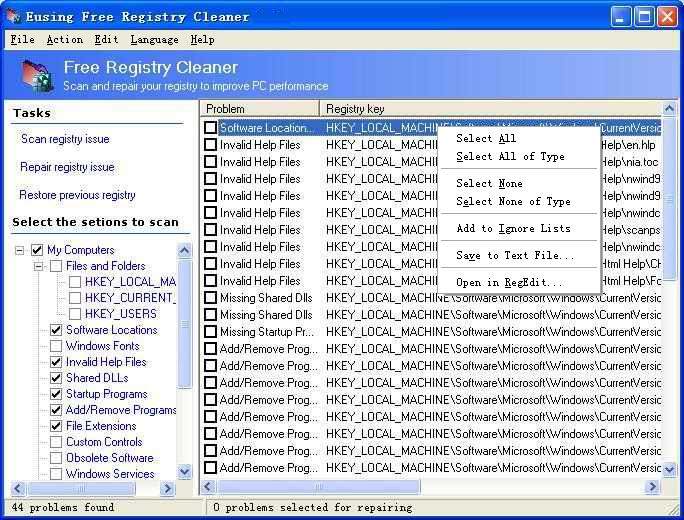
Eusing Free registry cleaner

Eusing Free Registry Cleaner ScreenShot

Eusing Free Registry Cleaner is a free registry repair software that allows you to safely clean and repair registry problems with a few simple mouse clicks. The Windows Registry is a crucial part of your PC's operation system.

Download here...


Abexo Free Registry Cleaner


Abexo Free Registry Cleaner is the freeware edition of Abexo Registry Cleaner. This software aims at making your computer run faster by cleaning Windows system registry. One-click registry backup, cleanup and defrag (shareware version only). Version 1.1 includes bug fixes and improvements.

Download Abexo Free Registry Cleaner


CleanMyPC Registry Cleaner Publisher's Description:

CleanMyPC Registry Cleaner scans the Windows registry and finds incorrect or obsolete information in the registry. By fixing these obsolete information in Windows registry, your system will run faster and error free. The backup/restore function of the tool lets you backup your whole Windows Registry so you can use it to restore the registry to the current status in case you encounter some system failure. Also features Startup and BHO organizer.

Download Now!


Sunday, 24 February 2013

Browser add-on makes Flickr's galleries faster

,

Browser add-on Flickr Gallery Plus adds extended functionality to Flickr's set view, allowing users to click through to see full versions of each shot without having to reload the page. Once installed it will go out and pre-fetch the larger sized version of each shot, making big sets a cinch to speed through. This includes the addition of keyboard shortcuts (something you can't get in Flickr without a Greasemonkey script) which lets you go back and forth between shots using your arrow keys.


In addition to its thumbnail optimizer, the add-on includes a simple slideshow viewer that doesn't attempt to replace Flickr's own gorgeous slideshow tool. Instead, it simply fades together the pre-fetched pictures without leaving the page. You can set how long you want each photo to be displayed, anywhere from one to five seconds.

If you're a heavy Flickr user this extension is definitely worth the download as it will cut your page loads in half. It retains Flickr's slideshow tools and its same navigation; you also have the option to turn it on and off from a setting at the bottom of your browser.

Note: As with all experimental Firefox add-ons, you must be registered with Mozilla's Firefox add-ons site to download it. It's also available as a Greasemonkey script.

Flickr Gallery Plus lets you go back and forth between shots with your keyboard's arrow keys. It also pre-fetches each image--letting you load it without the page re-loading.


Free Hacking Tools Copyright © 2011 -- Template created by All Premium Accounts -- Powered by Free Premium Accounts